How to see scheduled posts on Instagram (and Facebook), and why one is missing
In the app it is Profile, Menu, Scheduled content. On a computer it is Meta Business Suite, which only promises the posts scheduled there. Here is every route from Meta's own pages, two videos of the menu as it looks now, and the reasons a scheduled post is not where you expect.

To see scheduled posts on Instagram, open the app, go to your profile, tap the menu in the top right and tap Scheduled content. You can also start a new post or reel and tap Scheduled. On a computer there is no list on instagram.com that Meta documents; use Planner in Meta Business Suite instead. For a Facebook Page the list is also in Meta Business Suite, under Planner or under Content, Scheduled.
Our articles are still written by humans!
Get human written articles in your Google feed.
That is the short answer, and it is right for most people. The rest of this page is for when it is not: the menu in your app does not match the help page, the post is not in the list, or you scheduled it somewhere else and do not remember where.
Where to look, by where you scheduled it
| Where you scheduled it | Where to see it | What Meta's pages say |
|---|---|---|
| Instagram app | Profile, Menu, Scheduled content. Or Create, Post or Reel, Scheduled | Two ways to manage scheduled content, both in the app |
| Meta Business Suite, for Instagram | Planner, or Content, Posts & reels, Scheduled | Planner shows content scheduled in Meta Business Suite |
| Meta Business Suite, for a Facebook Page | Planner, or Content, Posts & reels, Scheduled | Facebook's Page help sends you to Planner |
| A Facebook group | The group, Admin tools, Scheduled Posts | Admins and moderators can schedule group posts |
| A third party scheduling app | That app, for Instagram. For a Facebook Page, possibly Business Suite too | Instagram's API has no later time setting; the Pages API has one |
| Instagram on a computer | No documented list; use Meta Business Suite | The computer version of Instagram's page gives the app steps |
Where are scheduled posts in the Instagram app?
Instagram's page, How to create and manage scheduled posts and Reels on Instagram, gives two ways in. The first goes through your profile:
- Tap Profile or your profile picture in the bottom right.
- Tap Menu in the top right.
- Below Your insights and tools, tap Scheduled content.
- Tap Options next to the post or reel you want to edit.
- Select Delete, Edit post, Reschedule or Share now.
The second starts from a new post. Tap Create in the top left, or swipe right anywhere in Feed, then tap Post or Reel, and tap Scheduled to see what is waiting. Select one and tap Options for the same four choices.
There are 2 ways to manage scheduled content: from your profile, or when you create a new post or reel.
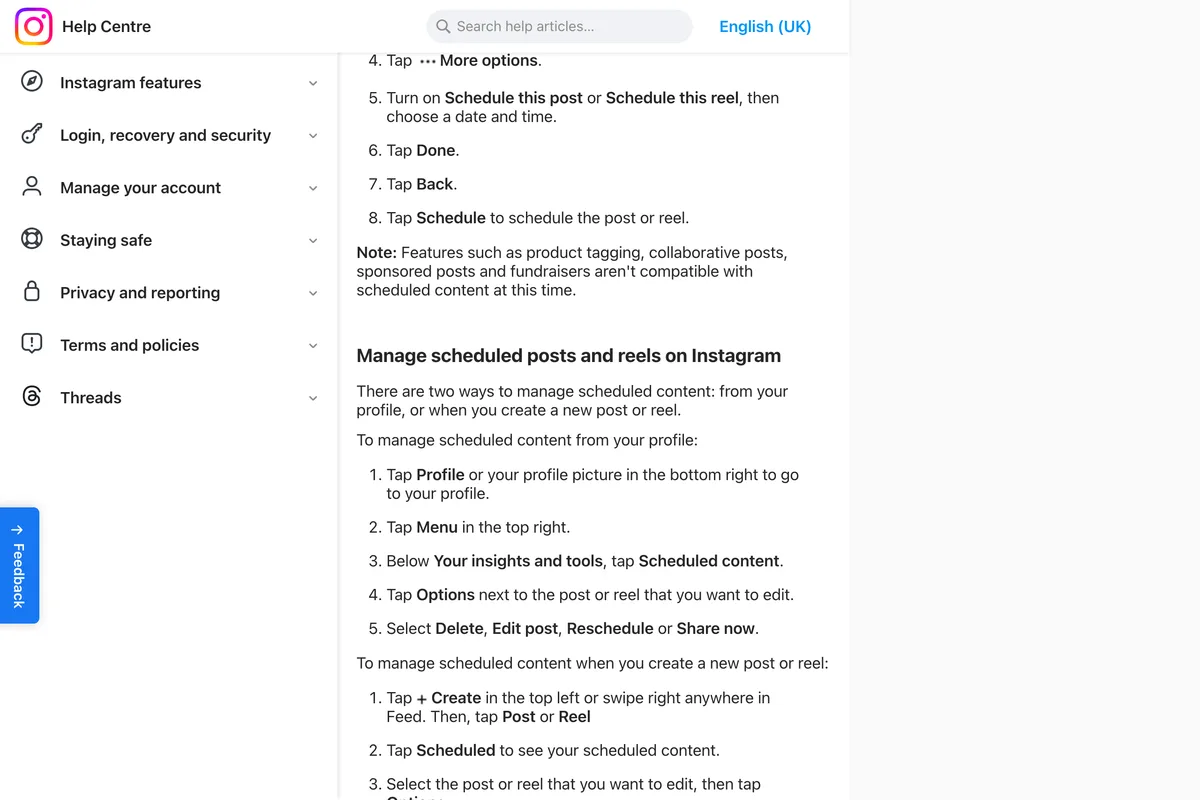
Share now is the one worth knowing about. It publishes a scheduled post immediately, which is the quickest fix when you scheduled something for the wrong day and the right day is today.

Why your menu does not match Instagram's help page
Instagram's page says Scheduled content is below Your insights and tools. The two most recent videos we could find that show the menu on a phone file it somewhere else, and not in the same place as each other:
- February 2026 (Ken Ang Wee Kien): Menu, then For professionals, then Account type and tools, then Scheduled content, among the core tools.
- April 2025 (Trevor Nace): Menu, then scroll to For professionals, where Scheduled content is listed directly.
- Instagram's help page, 29 October 2026: Menu, then below Your insights and tools, Scheduled content.
Ken Ang's video, uploaded on 27 February 2026, is the newest layout we found. It is a minute long and shows the deeper path: Menu, For professionals, Account type and tools. One thing he says needs a correction: that Scheduled content is only accessible from a professional account. Instagram's page asks for something different, a public account. We have not checked the menu on a personal account ourselves.
Trevor Nace's video, from 7 April 2025, is the clearest look at what you can do once you are in the list. He opens a post scheduled for the next morning and shows each of the four options, including what Edit post lets you change: the caption, tagged people, the location and the alt text.
Can you see scheduled Instagram posts on a computer?
Not on instagram.com, as far as Meta documents it. Instagram's help page has a Computer Help version, and it gives the same app steps, with Tap Profile and Tap Menu. We found no Meta page that describes a list of scheduled posts on instagram.com, and none of the eleven guides we read claimed one either.
The computer route is Meta Business Suite at business.facebook.com. Choose the Instagram account in the menu at the top left, then open Planner for a calendar, or Content for a list. Meta's Planner page says exactly what you will see there, and the sentence is more careful than most guides make it sound:
You can see all content that has been published on your Facebook Page and/or Instagram profile, as well as content that has been scheduled in Meta Business Suite.
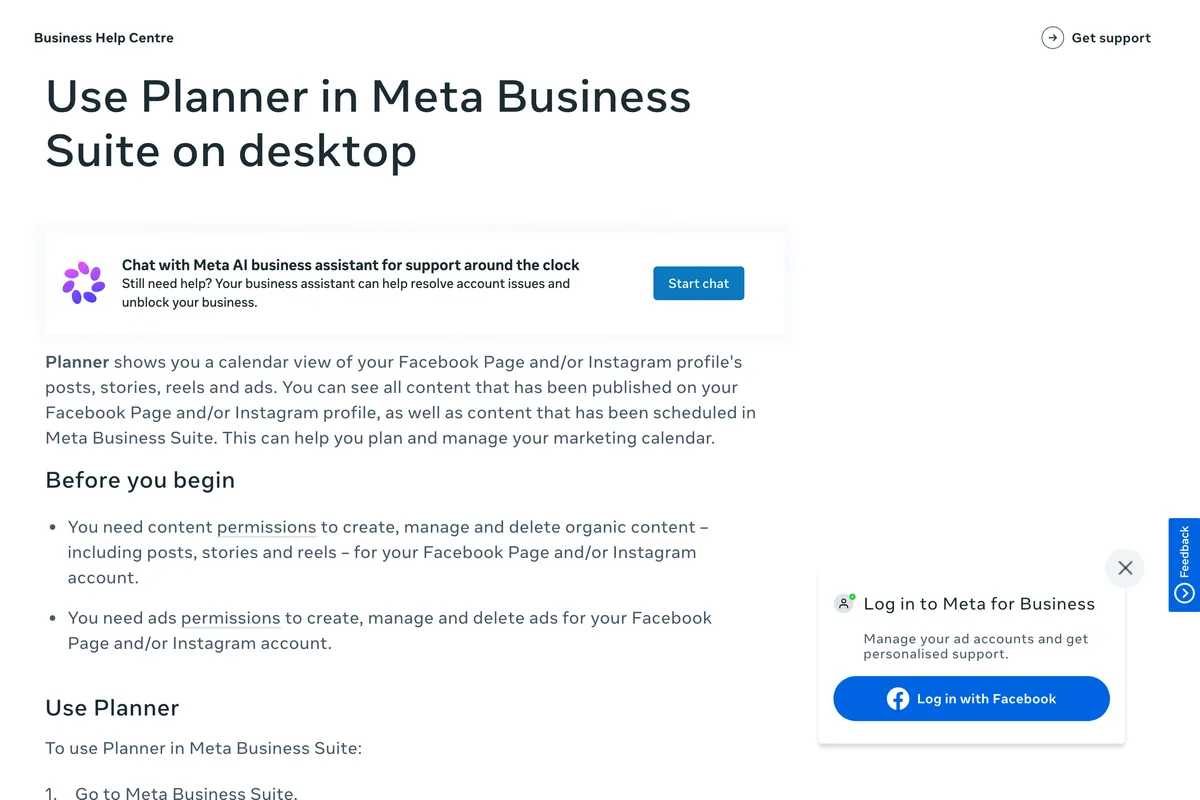
Published posts show up whatever made them. Scheduled ones are promised only if they were scheduled in Meta Business Suite. Meta does not say whether a post scheduled in the Instagram app also appears in Planner, or whether a post scheduled in Business Suite appears in the app's Scheduled content. Some guides say yes and others say no, and none of them cites a Meta page for it. So the safe rule is to look where you scheduled it.
Planner can be filtered two ways, both in the top right: Content type (Post, Story, Reel, Ad) and Shared to (Facebook Page, Facebook Groups, Instagram account). If a scheduled post is missing, check both filters before anything else. A story will not show while the filter is set to posts.
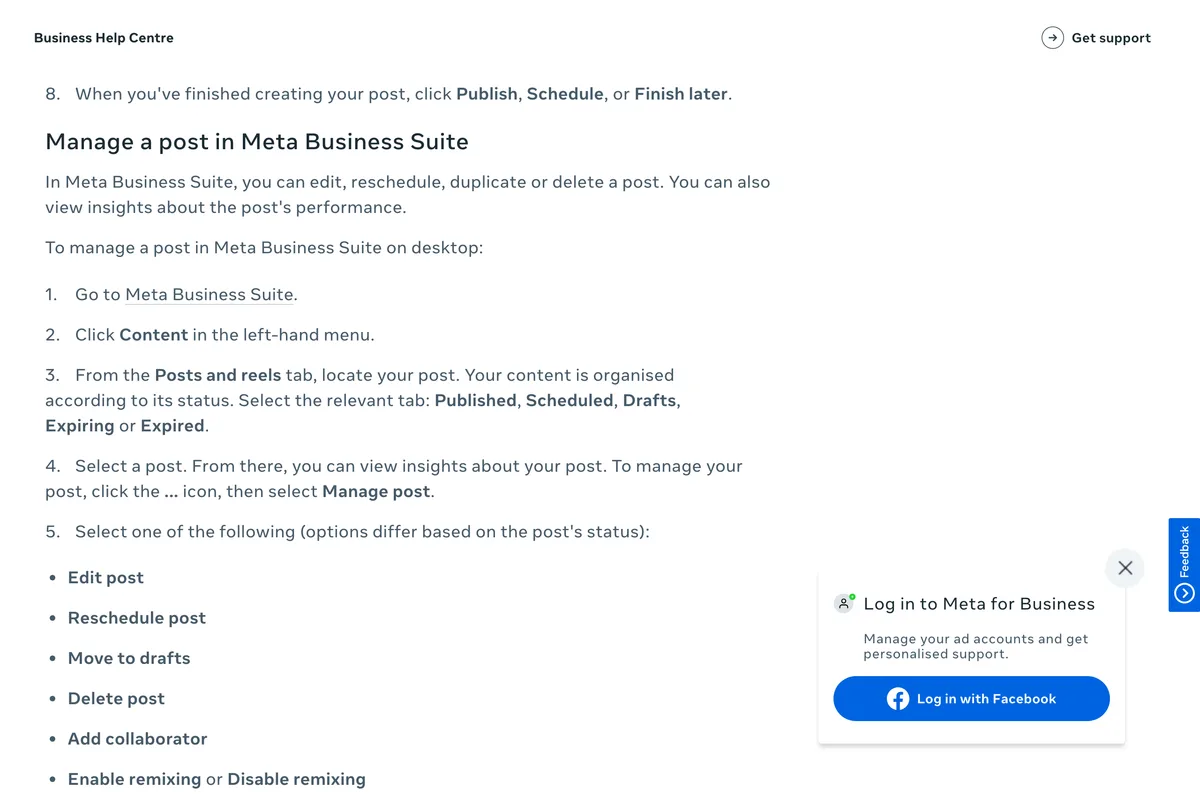
For a list rather than a calendar, Meta's page on managing posts says: click Content in the left menu, and on the Posts & reels tab choose Published, Scheduled, Drafts, Expiring or Expired. A post saved with Finish later instead of Schedule is a draft: Meta's page on saving and scheduling posts says saved drafts are under Content, Posts & reels, Drafts.
How to see scheduled posts on a Facebook Page
Facebook's page, Schedule a post and manage scheduled posts for your Facebook Page, sends you to Meta Business Suite for both jobs. To see and change what is scheduled:
- Switch to the Page you want to use.
- From your Page, click Meta Business Suite in the left menu.
- Click Create post below your Page's profile picture.
- Click Planner in the left menu.
- Find the post on the calendar and click it. Switch between Week and Month in the top left.
- Click Options to edit, duplicate, reschedule, move to drafts or delete it.
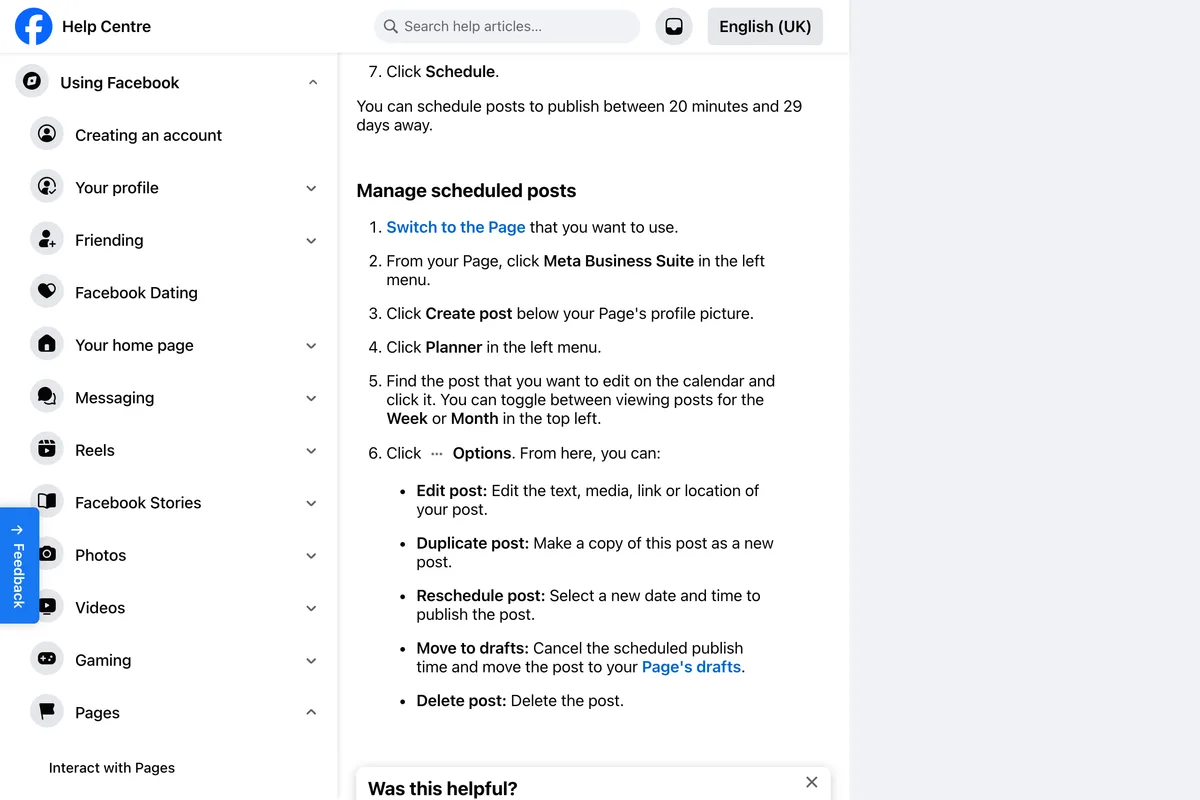
Two lines on the same page explain most of the questions people have afterwards. The first is about who can see the list: scheduled posts can be created and edited by people with Facebook or Task access. Someone with less access may not be able to open or change them, and our guide to adding an admin to a Facebook Page covers the access levels. The second is about time:
Note: All times for scheduling correspond to your current time zone.
Meta's note suggests that if a teammate in another country scheduled the post, the time is shown in your time zone, not theirs. That is a likely reason a post look as though it was scheduled for the wrong hour.
A Facebook group works differently. Facebook's page on scheduling posts in a group you manage says admins and moderators can schedule group posts, and that the list is in the group itself: click Scheduled Posts in the Admin tools menu on the left, after clicking Manage if you need to. A recurring post set up through Admin Assist appears there only 24 hours before it is published, which is why a weekly prompt can seem to be missing for six days of the week.
How far ahead can you schedule? Three Meta pages, three answers
While checking where scheduled posts go, we found that Meta gives three different windows for how far ahead they can go, on three of its own pages.
| Where | How far ahead | Meta's page |
|---|---|---|
| Instagram app | up to 25 posts a day, up to 30 days in advance | Instagram Help Centre |
| Facebook Page, through Meta Business Suite | between 20 minutes and 29 days away | Facebook Help Centre |
| Facebook Page, through Meta's API | between 10 minutes and 30 days from the time of the API request | Pages API documentation |
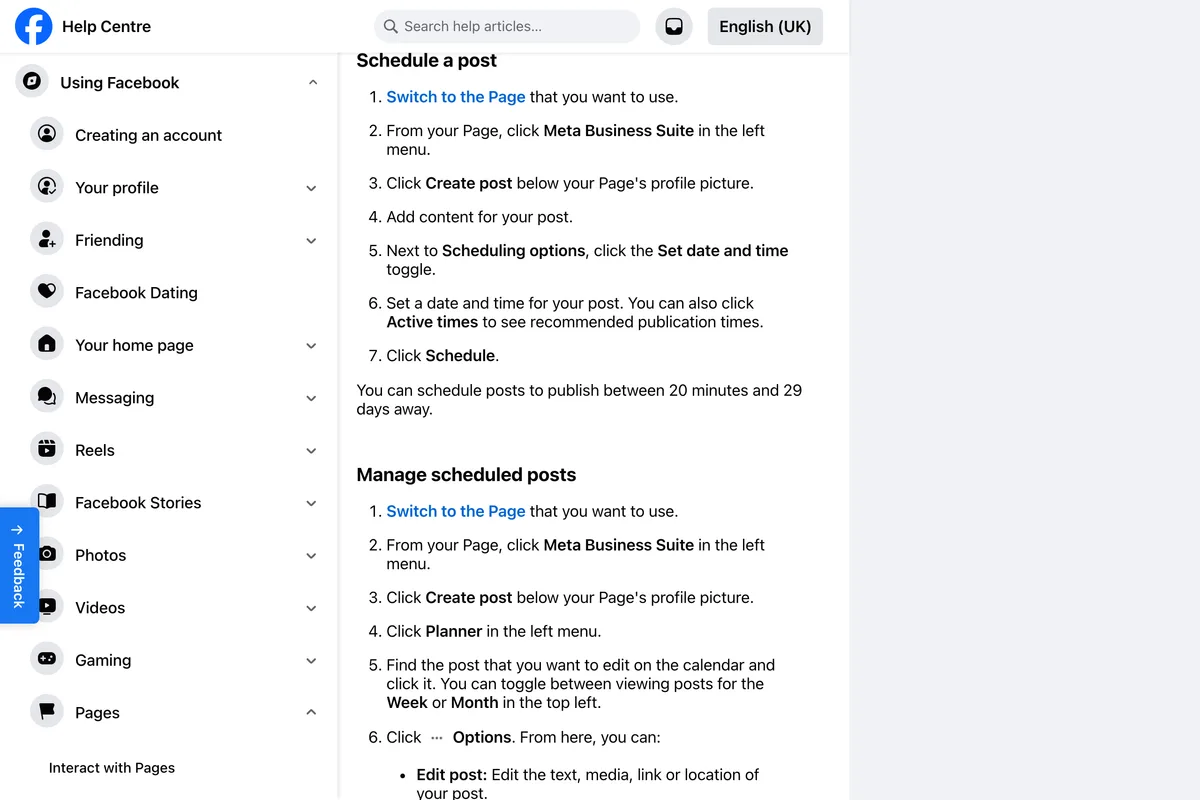
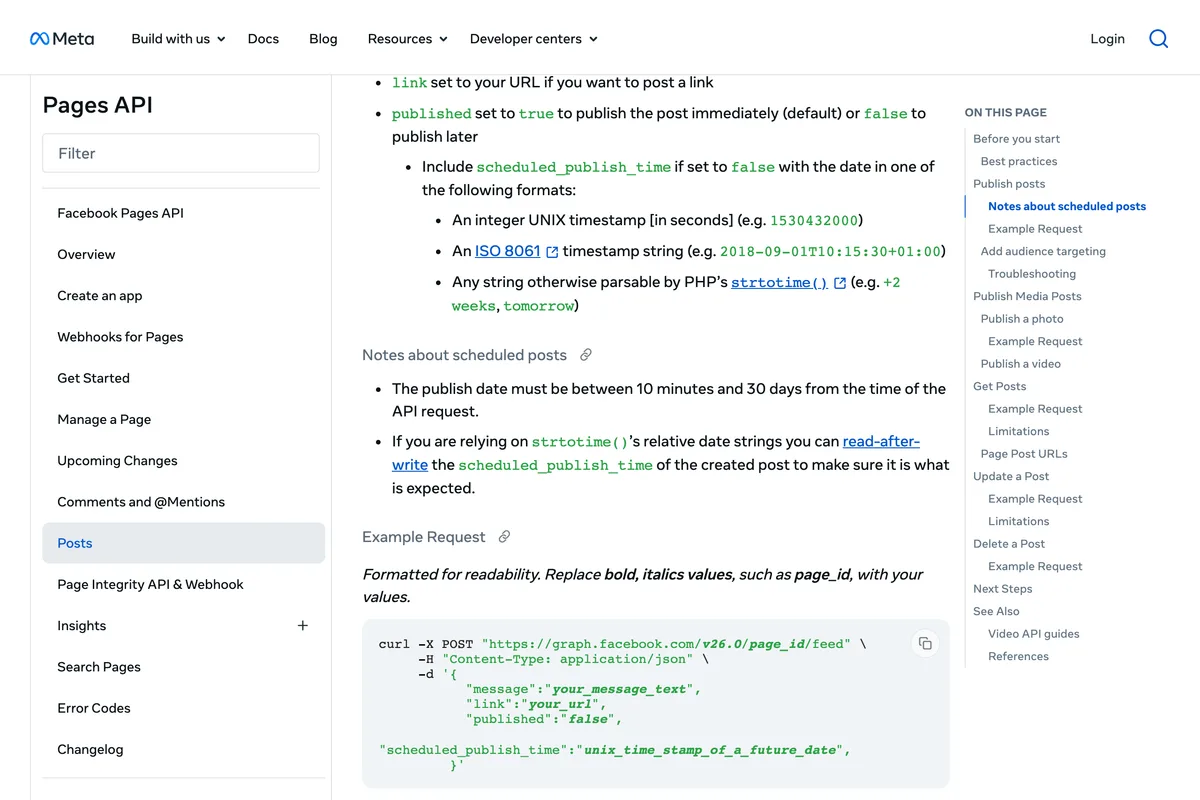
In practice the difference is one day at the far end and ten minutes at the near end. Plan in four week blocks and none of it matters. If the date picker stops a day earlier than you expected, this is why. Our guide to why you can't schedule Instagram posts covers the other limits, including the features that cannot be scheduled at all.
Why a scheduled post is not in the list
In rough order of how often each one is the answer:
- You scheduled it somewhere else. The app, Business Suite and other tools each keep their own queue for Instagram, and Meta only promises that Planner shows what Business Suite scheduled. Look in the place you used.
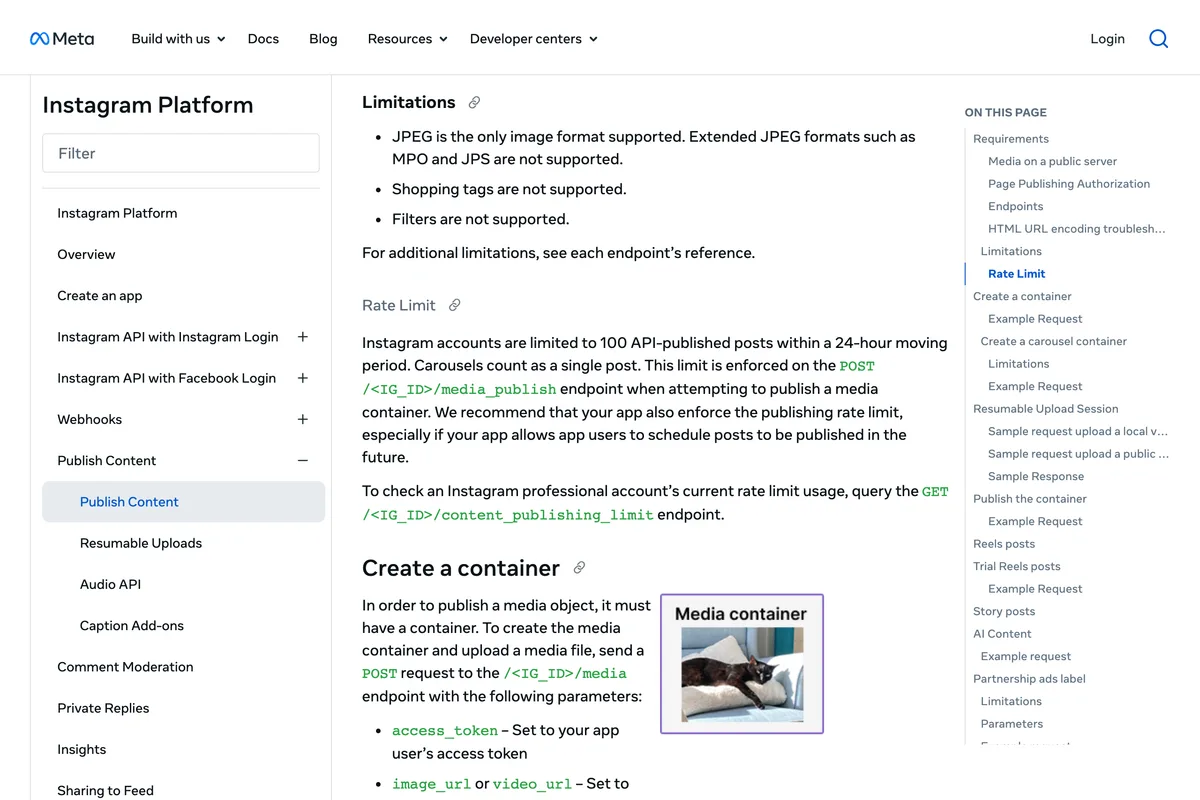
- It was scheduled in another app. Meta's Instagram publishing documentation describes publishing a post now and has no setting for a later time; its only mention of scheduling is advice to apps that do it themselves. So a tool holds an Instagram post until its time comes and publishes it then. Until then it exists only in that tool. Facebook Pages are different: Meta's Pages API lets a tool hand over a post with a publish time, so a Page post scheduled elsewhere may be waiting on Facebook's side.
- You are looking at the wrong account. Business Suite shows one Page or Instagram account at a time; pick the right one in the menu at the top left. In the app, check which account is active if you switch between more than one.
- A filter is hiding it. Planner's Content type and Shared to filters. A story will not appear in a view filtered to posts.
- It is a draft. Finish later saves a draft, which sits in the Drafts tab, not Scheduled.
- You do not have the access. Meta's Planner page says if you can't see Planner then you may not have the relevant permissions. For a Page, Facebook's help page says scheduled posts can be created and edited by people with Facebook or Task access.
- It already went out, or failed. Check Published. A post that is in neither Published nor Scheduled, or one that never appeared at its time, is a publishing fault, and the causes Meta lists are in Meta Business Suite not posting to Instagram.
What other guides get wrong
Most of the pages that rank for these searches are written by companies that sell scheduling tools, which is fine, and so are we. But several repeat numbers and menus that Meta's own pages no longer support. We read eleven of them on 29 October 2026.
| What the guide says | What Meta's page says | Who says it |
|---|---|---|
| You can schedule up to 75 days ahead | Instagram: up to 30 days in advance | PostPlanify, AdaptlyPost, PostSyncer, Smash Balloon |
| Meta Business Suite stretches that to 6 months | Instagram: up to 30 days in advance. Facebook Page: between 20 minutes and 29 days away | AdaptlyPost (for Instagram), PostPlanify (for Facebook) |
| Scheduled content requires a Professional account | You must have a public account on Instagram | AdaptlyPost, PostSyncer; Upload-Post says personal accounts have no scheduled posts |
| Open Publishing Tools on your Page | Facebook's Page help sends you to Planner in Meta Business Suite | PostPlanify and AdaptlyPost (for Facebook) |
| Tap Advanced settings before Share (iPhone) | Tap More options | Smash Balloon |
| App posts usually show in Business Suite; Business Suite posts do not show in the app | Meta's pages say neither | Upload-Post (usually shows), PostPlanify (will not) |
The 75 days is the figure guides have repeated since the scheduler arrived in the app, which PostSyncer dates to late 2022. We cannot say when Instagram changed it, only that its page now says 30 days. The account claim is the one that sends people the wrong way: Meta's page on professional accounts says that switching a private personal account to a professional one makes it public, which is why switching seems to fix things, but the rule Instagram publishes is about being public.
Where posts scheduled in our app are

We make one of those other tools, so this is the honest version for our own customers. A post scheduled in our app is not sent to Instagram or Facebook ahead of time. It waits under My posts in our app, and a job that runs every 15 minutes publishes whatever has come due. Until then you will not find it in Instagram's Scheduled content or in Meta's Planner, and that is expected. Once it is published it is on your profile and in Planner like any other published post. If publishing fails, the next run tries again, and after three failed attempts we email the brand's owner, unless email notifications are turned off.
Frequently asked questions
How do I see my scheduled posts on Instagram?
In the Instagram app, go to your profile, tap the menu in the top right and tap Scheduled content. Instagram's help page puts it below Your insights and tools; two recent videos show it under For professionals. You can also tap Create, choose Post or Reel, and tap Scheduled.
Can I see scheduled Instagram posts on my computer?
Meta does not document a list of scheduled posts on instagram.com. On a computer, use Meta Business Suite at business.facebook.com: open Planner for a calendar, or Content and the Scheduled tab for a list. Meta says Planner shows content scheduled in Meta Business Suite.
Why can't I see a post I scheduled on Instagram?
Usually because it was scheduled in a different place. The Instagram app, Meta Business Suite and other scheduling tools each keep their own list. Also check you are on the right account, that Planner's filters are not hiding it, that it was not saved as a draft, and that it has not already been published.
How do I see scheduled posts on a Facebook Page?
Facebook's help page says to open Meta Business Suite from your Page, click Planner in the left menu and find the post on the calendar. You can also use Content and the Scheduled tab. From Options you can edit, duplicate, reschedule, move to drafts or delete the post.
Do posts scheduled in Meta Business Suite show in the Instagram app?
Meta's help pages do not say. Its Planner page promises only that Planner shows content scheduled in Meta Business Suite. Guides disagree, and none we read cites a Meta page for it, so look for the post in Meta Business Suite if that is where you scheduled it.
How far in advance can you schedule on Instagram and Facebook?
Instagram's help page says up to 30 days in advance, with up to 25 posts a day. Facebook's says a Page post can be scheduled between 20 minutes and 29 days away. Meta's API documentation for Pages says between 10 minutes and 30 days. The 75 days some guides quote does not match Instagram's page.
Can I edit a scheduled post on Instagram?
Yes. In Scheduled content, tap Options next to the post and choose Edit post. The same menu has Reschedule, Delete and Share now, which publishes it straight away.
How we researched this
- Every route on this page comes from Meta's own help pages, read on 29 October 2026 and photographed the same day: Instagram's page on scheduled posts and reels, Facebook's page on scheduling for a Page, and Meta Business Suite's pages on Planner and on managing posts. The photographs come from a browser that Meta served in UK English, so a few words differ from the US pages quoted in the text (two ways, organised, Posts and reels). The steps are the same.
- We did not schedule test posts on a live account for this piece, and we did not film the Instagram app ourselves. Where the app looks different from Meta's help page, we show two dated videos by other people and say what each one shows. The menu moves between app versions, so treat any path, including ours, as one to check against your own screen.
- The section on what other guides get wrong comes from reading eleven of the guides that rank for these searches on 29 October 2026, in full, and comparing each claim with Meta's pages. Every quoted line was checked against the page it came from.
Sources
- 1How to create and manage scheduled posts and Reels on Instagram
- 2Schedule a post and manage scheduled posts for your Facebook Page
- 3Schedule a post or set up recurring posts in a Facebook group you manage
- 4Use Planner in Meta Business Suite on desktop
- 5Create and manage posts in Meta Business Suite on desktop
- 6How to save, schedule or reschedule posts in Meta Business Suite
- 7Pages API: Posts
- 8Instagram Platform: Publish content