Meta Business Suite not posting to Instagram? The causes, from Meta's own pages
Meta names four reasons a post fails in Business Suite and one condition that stops it reaching Instagram at all. Here they are in Meta's words, photographed, in the order worth checking, plus the rules that trip up every other scheduling app.

If Meta Business Suite will not post to Instagram, it is almost always one of five things, and Meta names four of them itself: you do not have permission to publish to that Instagram account, the Instagram account has an unresolved issue waiting for you in the app, the account has been compromised, or a system error stopped a scheduled post at its time. The fifth is the one that stops a post reaching Instagram while the Facebook half goes out fine: the Facebook Page and the Instagram account are not connected inside the same business portfolio.
Our articles are still written by humans!
Get human written articles in your Google feed.
This page puts those in the order that finds the problem fastest, with Meta's own wording for each. The last section is for the other half of the people searching this: the ones who schedule through a separate app, where a different set of rules applies and most of the failures are about the picture, not the account.
Meta Business Suite not posting to Instagram: symptom, cause and fix
| What you see | Most likely cause | Fix |
|---|---|---|
| An error when you try to create or schedule a post | You lack access to publish to that Instagram account | Ask the portfolio owner for content permission on the Instagram account itself |
| The post went to Facebook but not Instagram | The Page and the Instagram profile are not connected in the same business portfolio | Put both in one portfolio and connect them |
| A post still sits in Scheduled after its time | A system error at the scheduled time | Content, then Scheduled, open the post, Publish now |
| Everything to Instagram fails at once | An unresolved issue waiting in the Instagram app, or a hacked account | Open the Instagram app and clear the pop-up, or recover the account |
| Instagram is not offered as a place to post | A personal profile, not a professional one, or not in your portfolio | Switch to a professional account and add it to the portfolio |
| A different scheduling app fails | An image outside 4:5 to 1.91:1, not a JPEG, or an expired connection | Export a 4:5 JPEG and reconnect the account |
Why is Meta Business Suite not posting to Instagram?
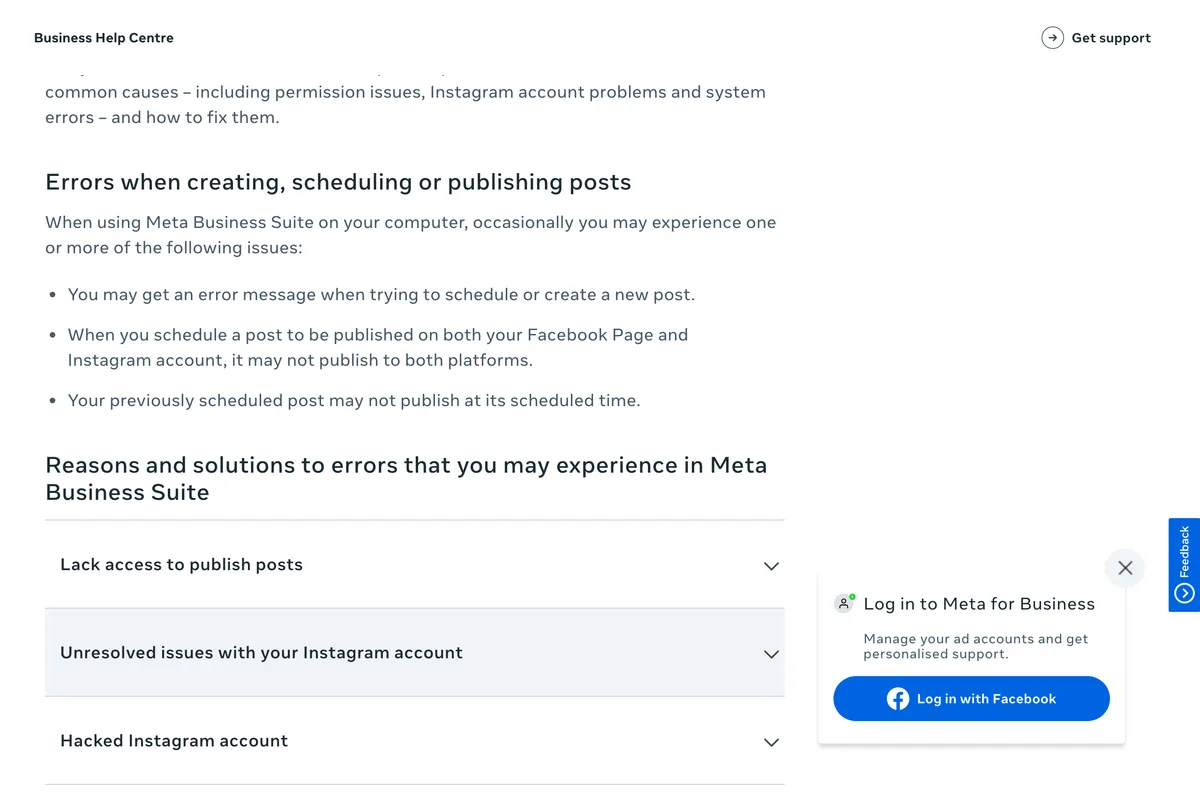
Meta keeps one page for this, called Troubleshoot errors creating, scheduling or publishing posts in Meta Business Suite. It describes three symptoms: an error message when you try to create or schedule a post, a post scheduled for both Facebook and Instagram that does not publish to both, and a scheduled post that does not publish at its time. It then gives four reasons.
| What Meta calls it | What it means | What to do |
|---|---|---|
| Lack access to publish posts | Your role does not include publishing to that Instagram account | Ask the portfolio owner to give you access to the Instagram account itself |
| Unresolved issues with your Instagram account | Instagram wants something from you and is waiting | Open the Instagram app, deal with the pop-up, then try again |
| Hacked Instagram account | You may not control the account any more | Try to log in to Instagram. If you cannot, recover the account first |
| System error preventing a scheduled post | Meta's side failed at the scheduled time | Content, then Scheduled, open the post, Publish now |
Check 1: can you actually publish to that Instagram account?
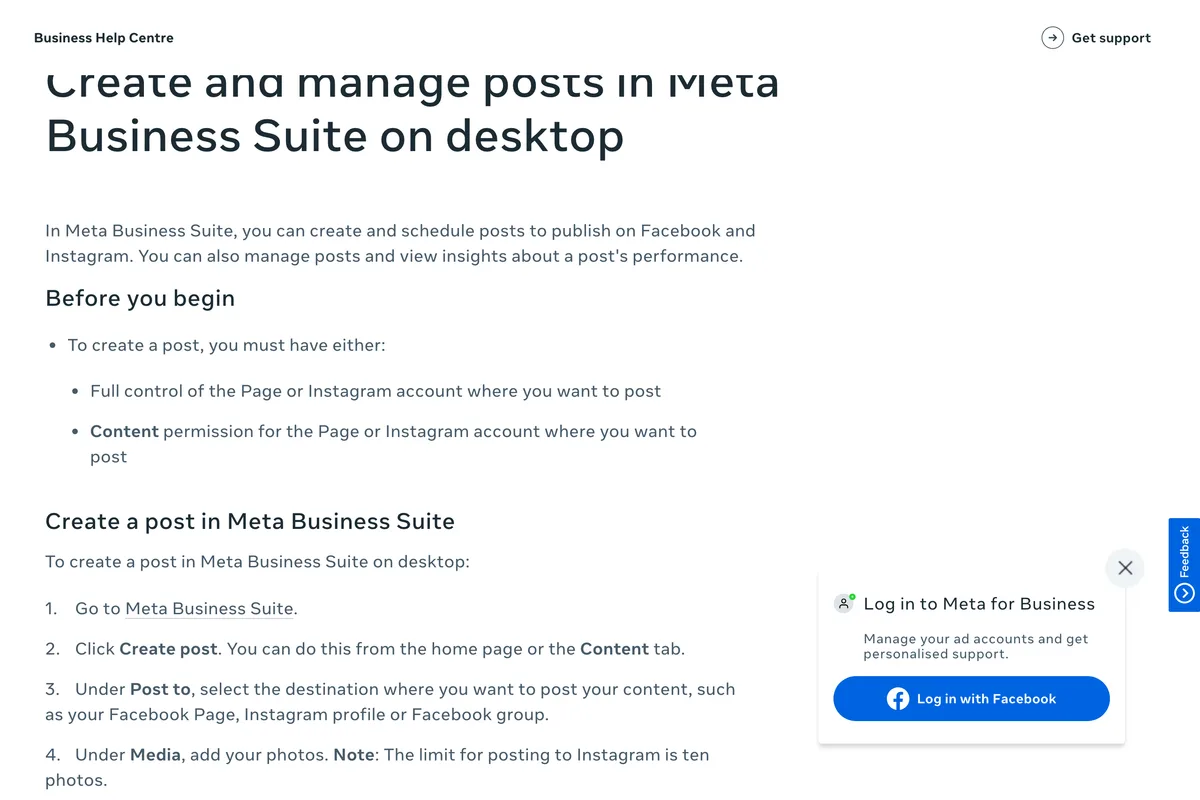
This is the most common cause in a business with more than one person in it, and the least obvious, because you can often see the Instagram account in Business Suite without being allowed to post to it. Meta's page on creating and managing posts says that to create a post you must have either full control of the Page or Instagram account where you want to post, or content permission for it.
The detail that catches people is that access is set per asset. Meta says the owner of a business portfolio can assign access and permissions at the business asset level. Being an admin of the Facebook Page does not necessarily give you publishing rights on the Instagram account sitting next to it in the same portfolio. The fix is not on your side, and Meta says so in one line:
To get access to publish posts, ask the owner to assign you access to the correct business asset, such as the Facebook Page or Instagram account.
Check 2: open the Instagram app
If the post that you're trying to publish is for your Instagram account, check for unresolved issues with your Instagram account.
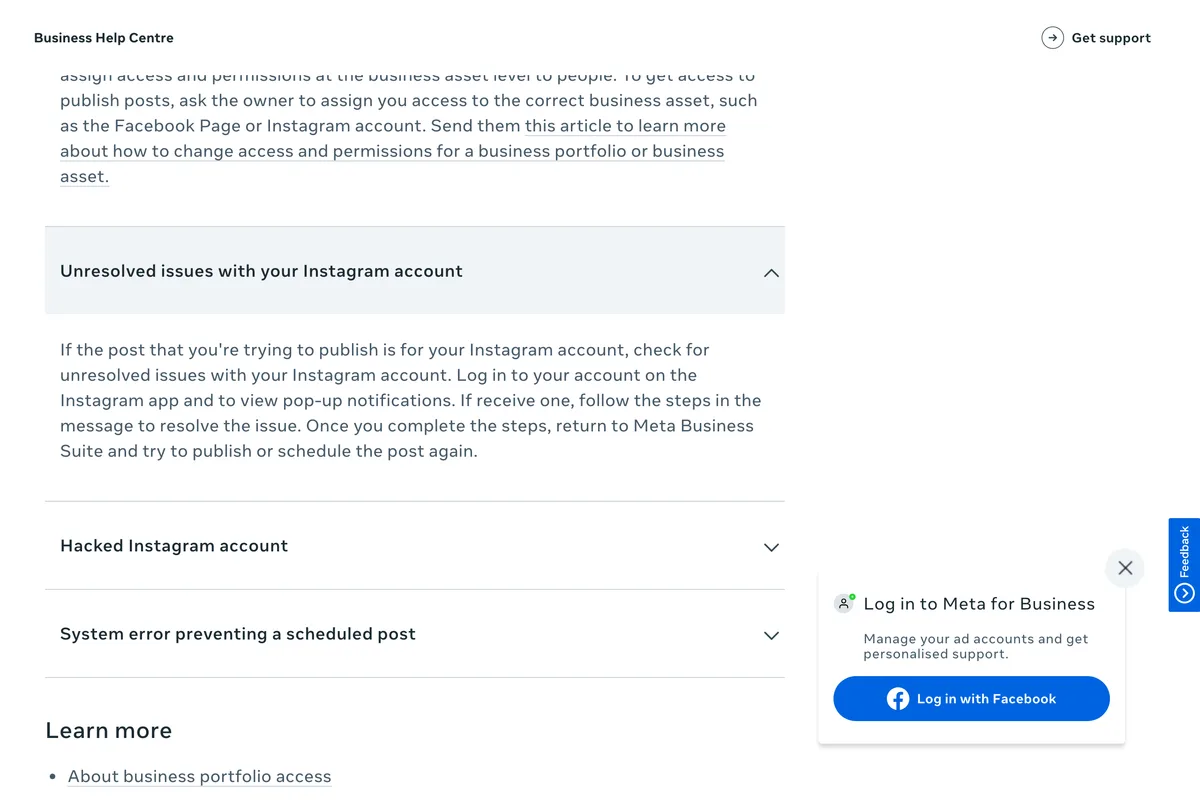
Meta's instruction here is short and worth following literally: log in to your account on the Instagram app and look for pop-up notifications. If there is one, follow its steps, then go back to Business Suite and try again. Meta does not say what the pop-up will be about, only that an unresolved issue there is enough to stop Business Suite publishing, and that you clear it in the app. It takes a minute and it is the check people skip because it seems too simple.
If you cannot log in to Instagram at all, stop here. Meta lists a hacked account as one of the four causes, and no amount of reconnecting in Business Suite will help while somebody else holds the password.
Check 3: are the Page and Instagram in the same business portfolio?
This is the one behind the most frustrating version of the problem, where the Facebook post goes out and the Instagram one never appears. Meta's page on cross-posting in Business Suite sets the condition in one sentence.
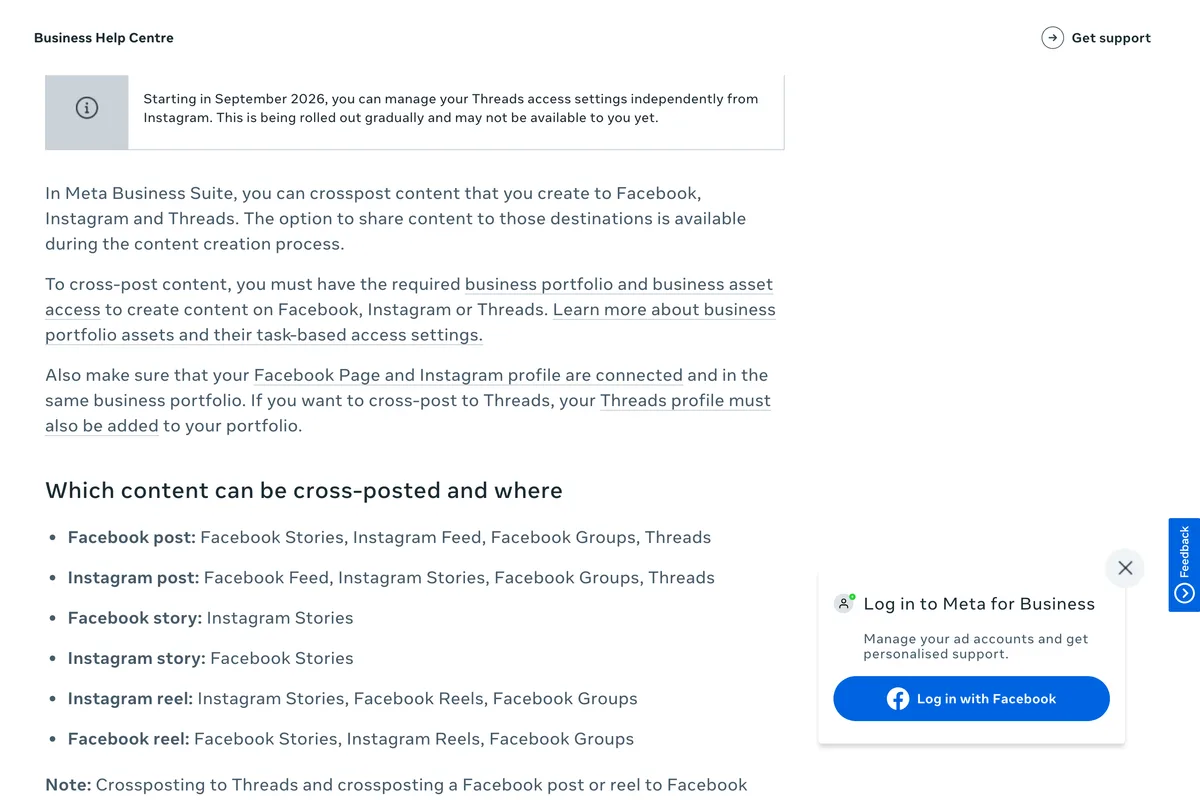
Also make sure that your Facebook Page and Instagram profile are connected and in the same business portfolio.
Two conditions, and people usually check only the first. Meta's page on connecting a professional account to a Page adds three more requirements: the Instagram account must be a professional account, business or creator; you need full control of the Facebook Page; and Instagram accounts can only be in one business portfolio at a time.
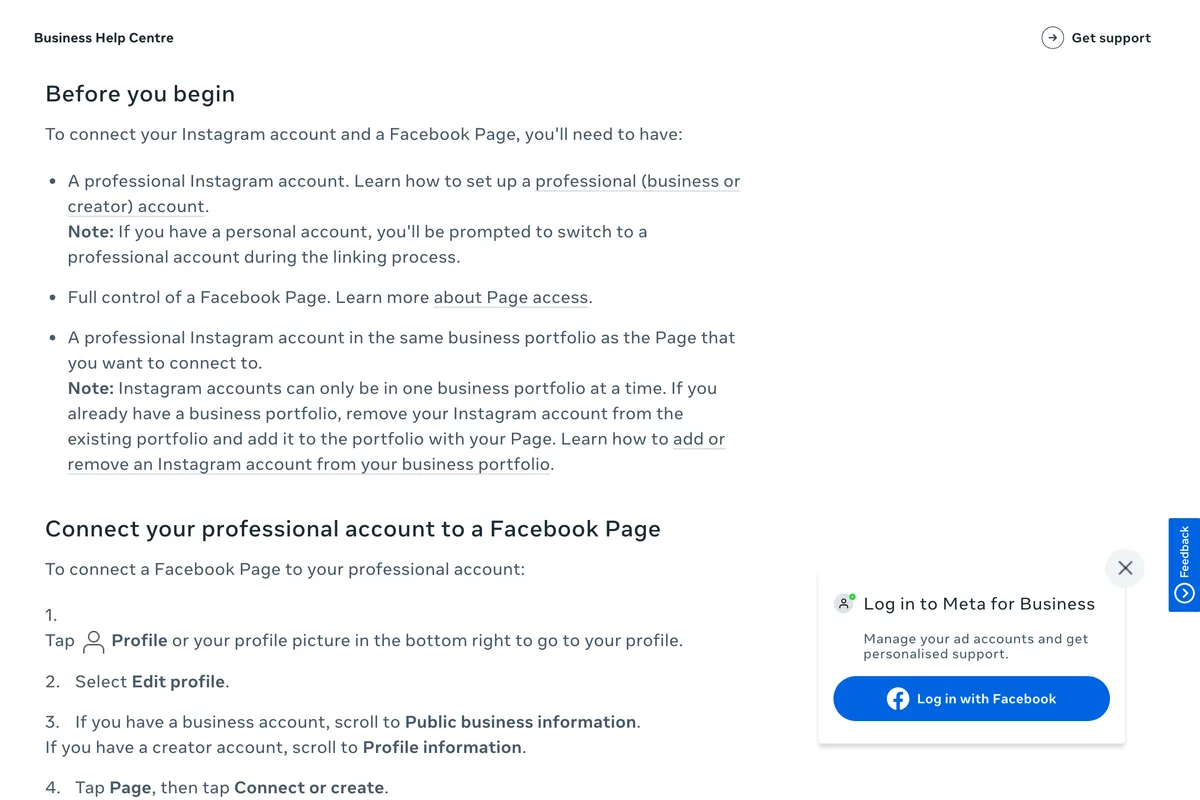
That last rule explains a lot of failed connections. An agency, a former employee or an old experiment may have put the Instagram account into a different portfolio years ago. Meta's page on why an Instagram profile cannot be added to a portfolio lists that case, alongside two others worth knowing: the Instagram profile is linked to a personal Facebook profile rather than a Page, or someone with full control of the portfolio has to approve the request. For the first, the options Meta gives are to have it removed from the other portfolio, to ask whoever controls that portfolio for access, or, as a last resort, to switch the professional account to private, switch it back to professional, and connect it to your Page again.
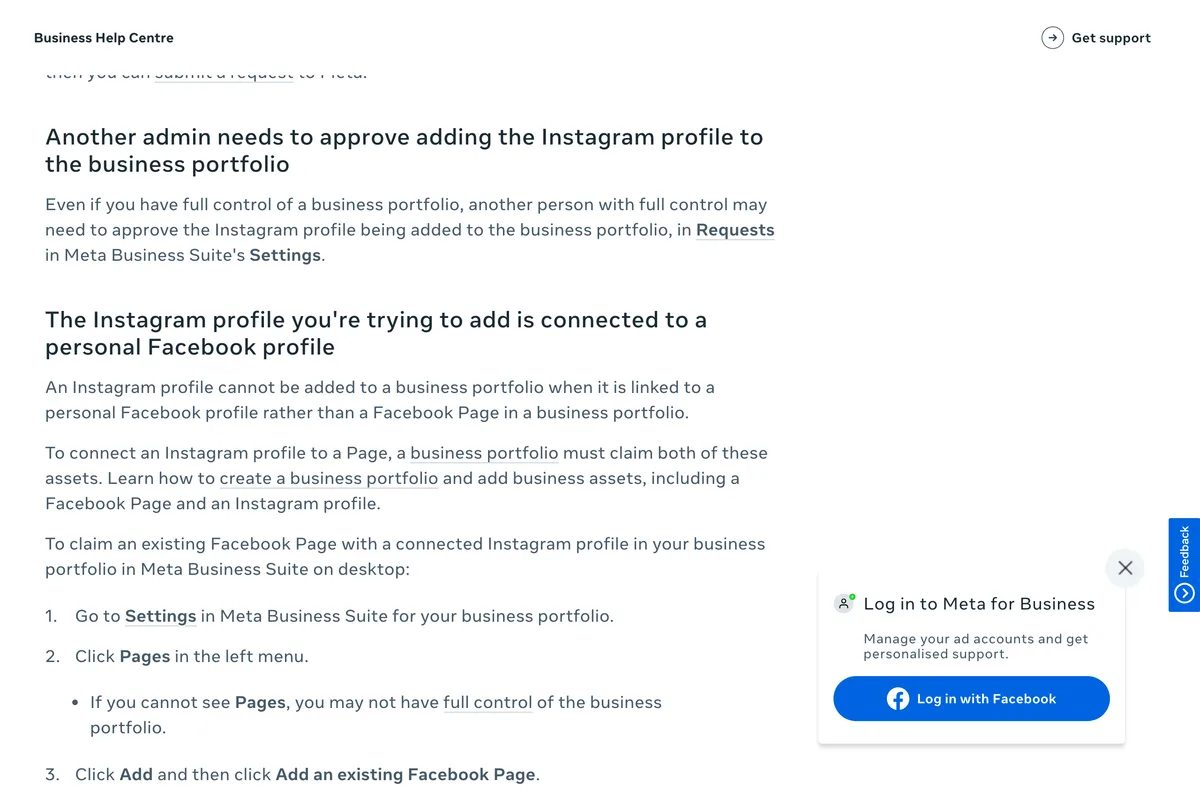
What can be cross-posted to Instagram at all
Even with everything connected, not every format crosses over, and Meta's list on the same page is specific. A Facebook post can go to the Instagram feed. A Facebook story can go to Instagram Stories, and a Facebook reel to Instagram Reels. Meta also notes that cross-posting a Facebook-only post is not currently available, and that Instagram posts from Business Suite are limited to ten photos. If you built a twelve image carousel, eleven and twelve are the problem.

Check 4: the post that quietly did not go
The fourth cause is the only one that is plainly Meta's fault, and Meta says so in these words:
A system error may prevent your post from being published at the scheduled time. To fix this, you can manually publish this post from the Content tab by following these steps.
The page does not say Business Suite will try again. The fix it gives is to publish the post yourself, which in practice means the post waits until someone notices.
- Open Meta Business Suite on a computer and click Content.
- Click Scheduled and look for an error message on any post that should already have gone out.
- Open the post that failed and click Publish now.
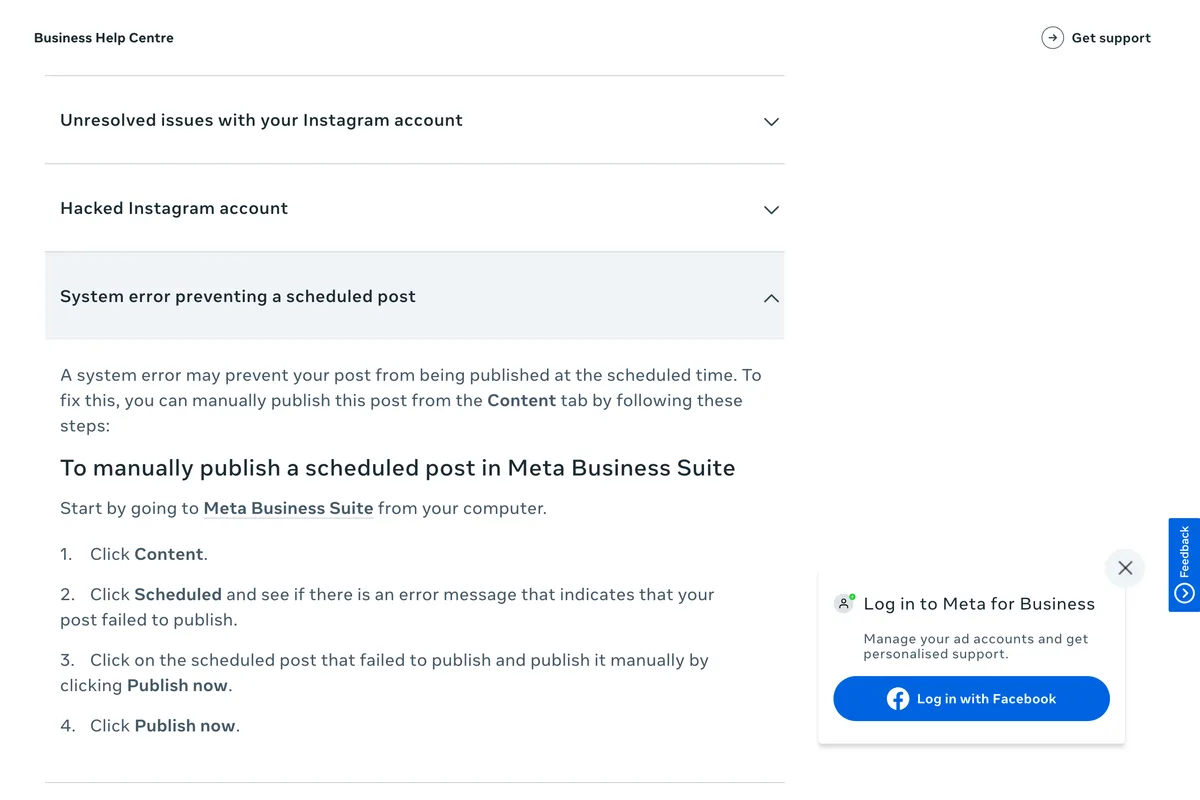
The same Content tab sorts everything by status, which Meta lists as Published, Scheduled, Drafts, Expiring and Expired. A post that is in Scheduled after its time has passed is a failed post whether or not it says so. The practical habit that follows is dull and effective: look at Content once on each day you have something scheduled. A week of posts that silently failed on Monday is a week of nothing.

Why does a scheduling app fail to post to Instagram?
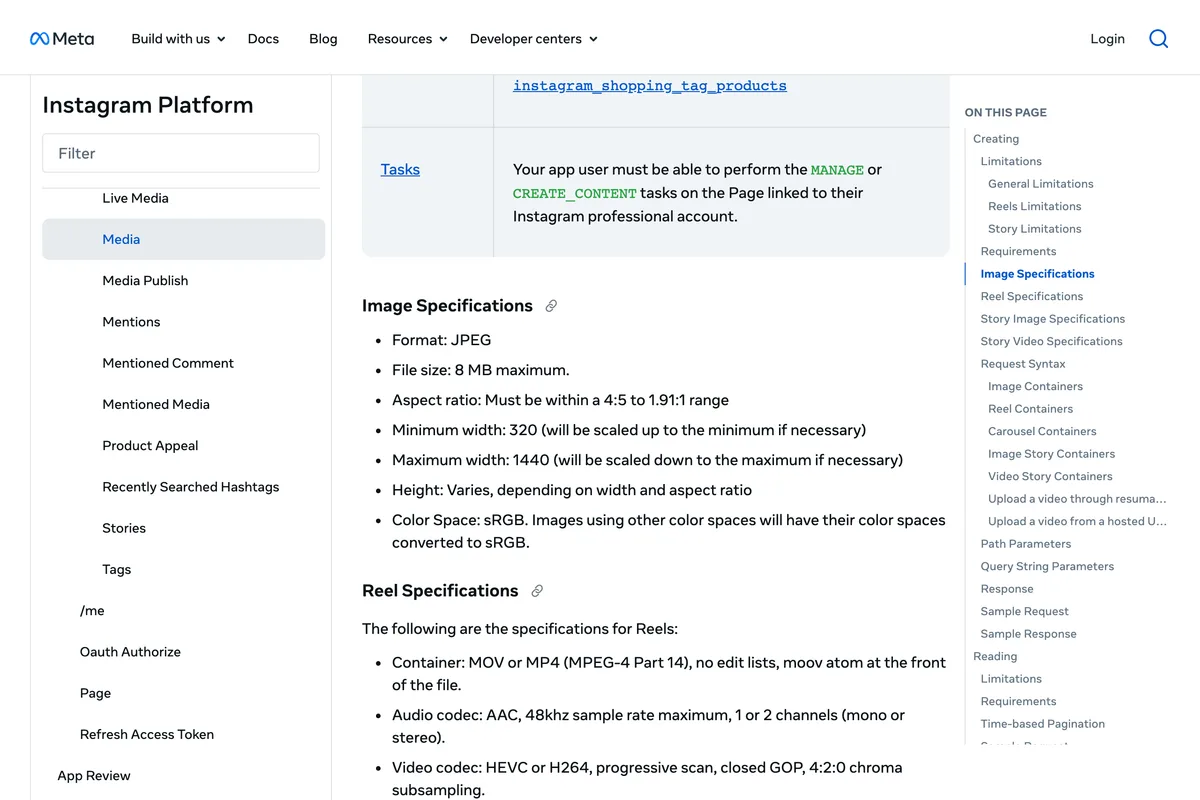
Scheduling apps, ours included, publish to Instagram through Meta's API, and the API has its own rules that Business Suite users never meet. Most of them are about the picture. They are written in Meta's developer documentation and hardly ever repeated in the articles you find when a scheduled post fails.
| Rule | What Meta's documentation says | What to do |
|---|---|---|
| Image format | JPEG is the only image format supported | Export JPEG, not PNG or WebP |
| File size | 8 MB maximum | Export at 1080 pixels wide and it will be far under |
| Shape | Must be within a 4:5 to 1.91:1 range | Use 4:5, 1080 x 1350. A 3:4 portrait is taller and outside the range |
| Caption | Maximum 2200 characters, 30 hashtags and 20 @ tags | Keep under all three |
| Volume | 100 API-published posts in a 24 hour moving period | Only matters to an agency posting in bulk |
| Page authorisation | A Page that requires Page Publishing Authorization cannot be published to until it is completed | Complete it when Meta asks. Meta says a Page can start needing it later |
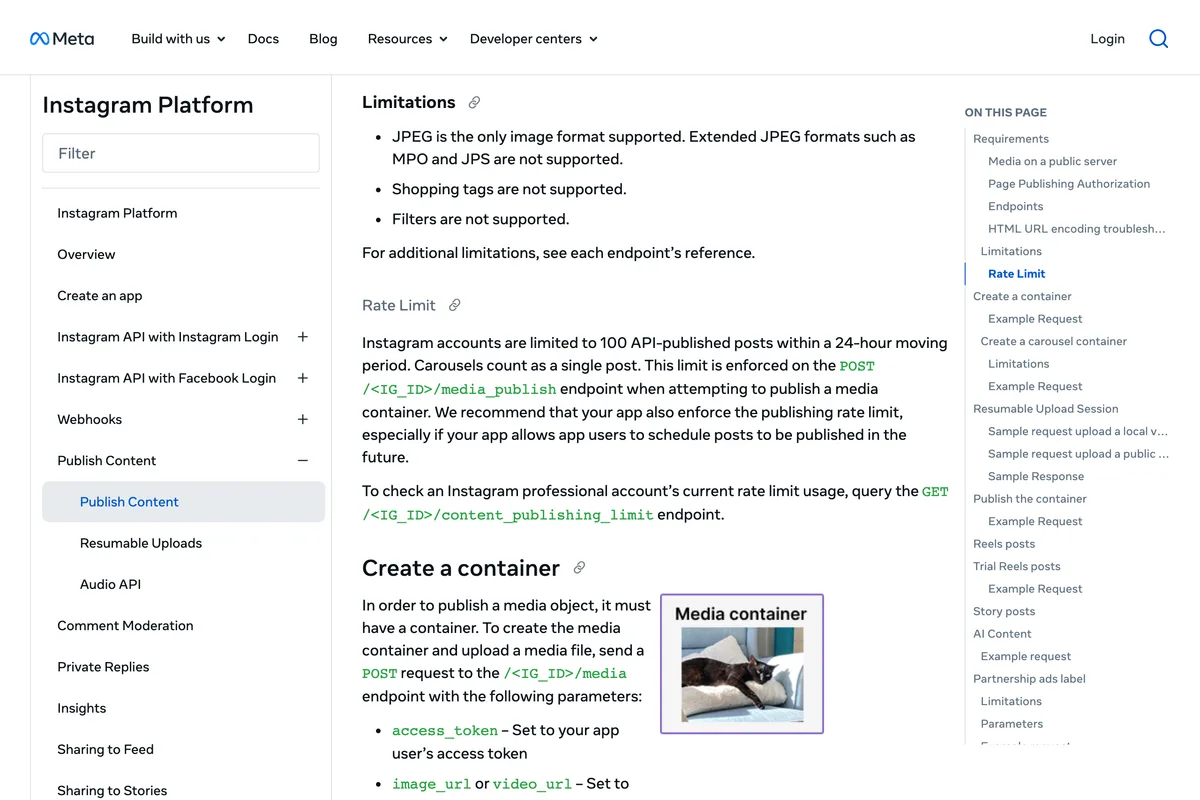
The shape rule deserves a sentence of its own, because it now contradicts the app. Since 2025 the Instagram app has accepted 3:4 posts, 1080 by 1440, and in our guide to Instagram post size we call that the safest default for a post you upload yourself. The API specification still ends at 4:5. We have not pushed a 3:4 file through the API to watch it fail, so treat this as what the documentation says rather than an error we reproduced, but if a scheduler is refusing a tall post and a 4:5 version of it goes through, this is the likely reason.
The other failure that belongs only to scheduling apps is time. Meta's developer documentation puts it in one sentence:
A long-lived token generally lasts about 60 days.
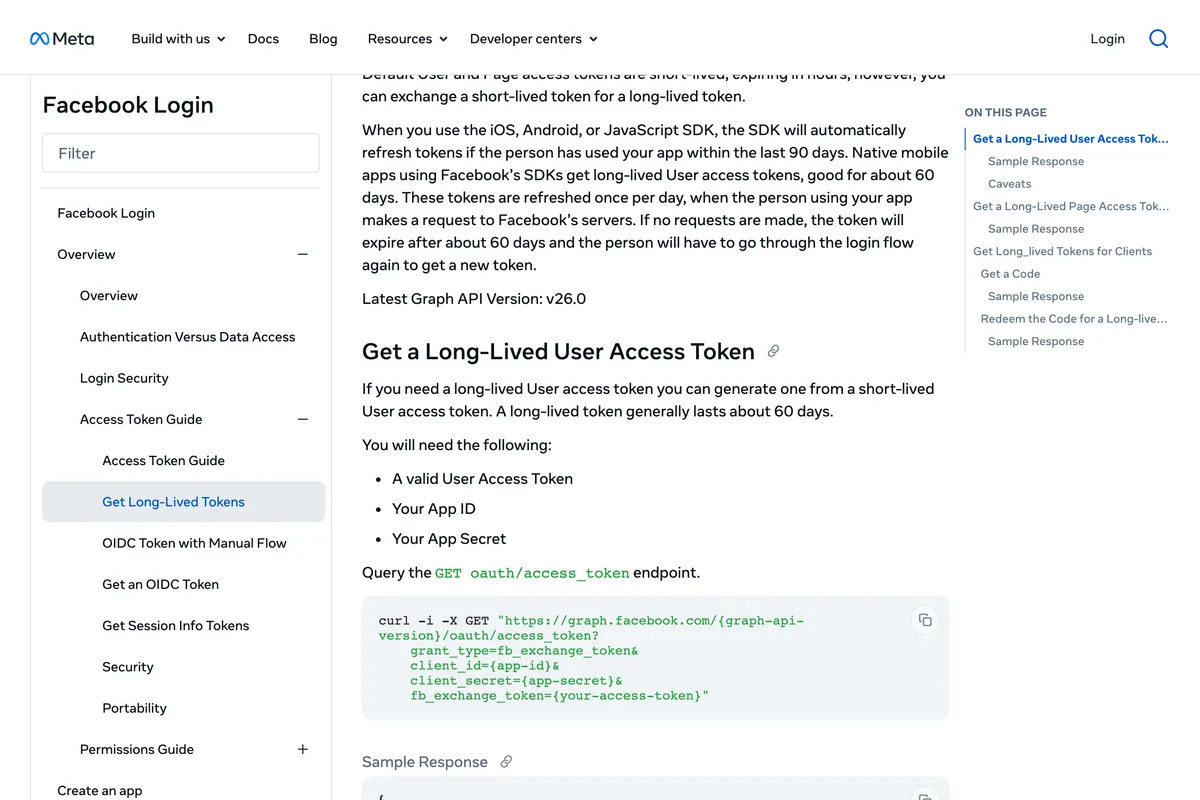
The same page adds that an expired token cannot be used to request a new one. An app that does not renew its connection before then loses it, and the first sign is a post that did not go out, weeks after anybody last logged in. If a tool asks you to reconnect Instagram every couple of months, that is what it is working around. Ours renews the connection on a timer whether or not anything is due, for exactly this reason.
The order that finds it fastest
- Open the Instagram app and clear any pop-up. One minute, and it fixes more than it should.
- In Business Suite, open Content, then Scheduled, and look for an error. If one post failed, Publish now.
- If only the Instagram half is missing, check the Page and Instagram are connected and in the same business portfolio.
- If you cannot create a post for Instagram at all, ask the portfolio owner for content permission on the Instagram account, not just the Page.
- If you use another scheduling app, check the picture: JPEG, under 8 MB, between 4:5 and 1.91:1, and the caption under 30 hashtags.
- If the app asks you to reconnect, do it. The token behind the connection has most likely expired.
If what you actually cannot find is the scheduling option itself, that is a different problem with different causes, and it is covered in why you can't schedule Instagram posts. If the post went out but Instagram labelled it, see why Instagram says AI info on your post, and if it went out without its music, why a business account can't use music.
Frequently asked questions
Why is Meta Business Suite not posting to Instagram?
Meta's help centre gives four reasons: you lack access to publish to that Instagram account, the account has an unresolved issue waiting in the Instagram app, the account has been hacked, or a system error stopped the post at its scheduled time. If the Facebook post goes out but the Instagram one does not, the usual cause is that the Page and the Instagram profile are not connected in the same business portfolio.
How do I publish a scheduled post that failed in Meta Business Suite?
On a computer, open Meta Business Suite, click Content, then Scheduled, and look for the post with an error message. Open it and click Publish now. Meta's help page gives this manual step as the fix and does not mention an automatic retry.
Why does my post go to Facebook but not Instagram?
Meta says that to cross-post, your Facebook Page and Instagram profile must be connected and in the same business portfolio. An Instagram profile can only be in one business portfolio at a time, so one that an agency or old account added elsewhere has to be moved first. Also check the format: a Facebook-only post cannot be cross-posted, and Instagram posts from Business Suite are limited to ten photos.
Do I need admin access to post to Instagram from Business Suite?
You need either full control of the Instagram account or content permission for it. Access is set per asset, so having full control of the Facebook Page does not automatically let you publish to the Instagram account in the same portfolio. The portfolio owner can add you.
Why does my scheduling app fail to post to Instagram?
Apps other than Meta's own publish through Meta's API, which accepts JPEG images only, up to 8 MB, with an aspect ratio between 4:5 and 1.91:1, and captions of up to 2200 characters, 30 hashtags and 20 @ tags. A 3:4 post is taller than 4:5 and outside that range. Connections also expire: Meta says a long-lived token generally lasts about 60 days.
Can Meta Business Suite schedule Instagram Stories?
Yes. Meta's help page for the Business Suite mobile app lists posts, reels and stories as content you can schedule for Facebook and Instagram. The Instagram app on its own schedules reels, photos and carousel posts, not stories.
How we researched this
- Every requirement on this page was read on Meta's own help and developer pages on 24 September 2026, and the passages the argument rests on are photographed in place, because Meta's help centre renders through scripting and edits its wording without notice. If what you find differs from what is shown here, trust the page and tell us.
- We did not break a Business Suite account on purpose to reproduce each error. The causes are Meta's, quoted, and the order to check them in is ours. Where the article describes how publishing through Meta's API behaves, it is describing documentation and code we wrote against it, not a test of every error message, and it says so where that matters.
Sources
- 1Troubleshoot errors creating, scheduling or publishing posts in Meta Business Suite
- 2About cross-posting to Facebook, Instagram and Threads in Meta Business Suite
- 3Connect or disconnect your professional Instagram account and a Facebook Page
- 4Why can't I add my Instagram profile to my business portfolio in Meta Business Suite?
- 5Create and manage posts in Meta Business Suite on desktop
- 6Instagram Platform: Content Publishing
- 7Instagram Platform: IG User Media reference
- 8Get long-lived access tokens